Appearance
Back End
Setup Back End side
The Back End repository is deployed via GitHub Actions, which reads its configuration from GitHub Environment secrets and variables (same model as the Front End). Access https://github.com/tci-itpf/tci-atm-backend → Settings → Secrets and variables → Actions for the repository-level values.
Repository variables — shared defaults, used as a fallback when an environment doesn't set its own value:
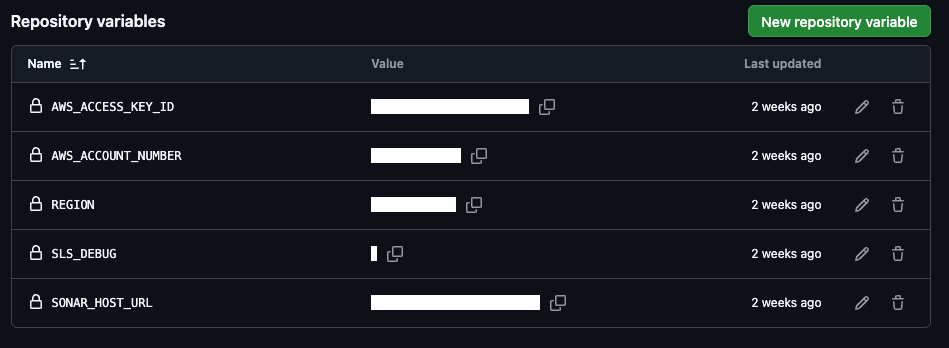
REGION (variable): default AWS region.
AWS_ACCOUNT_NUMBER (variable): default AWS account number.
SONAR_HOST_URL (variable): SonarQube server URL, used by the
sonarqube-scan.ymlworkflow.AWS_ACCESS_KEY_ID, SLS_DEBUG (variables): leftover from the old Bitbucket pipeline (static AWS credentials). No current GitHub Actions workflow reads them — deploys now authenticate via OIDC role assumption (
AWS_DEPLOY_ROLE_ARN) instead of long-lived keys.Repository secrets:

SONAR_TOKEN (secret): auth token for the SonarQube server, used by
sonarqube-scan.ymlon every Pull Request intomain.Each deployment environment (
development,staging,production) has its own secrets/variables under Settings → Environments → (environment name), which override the repository-level defaults above: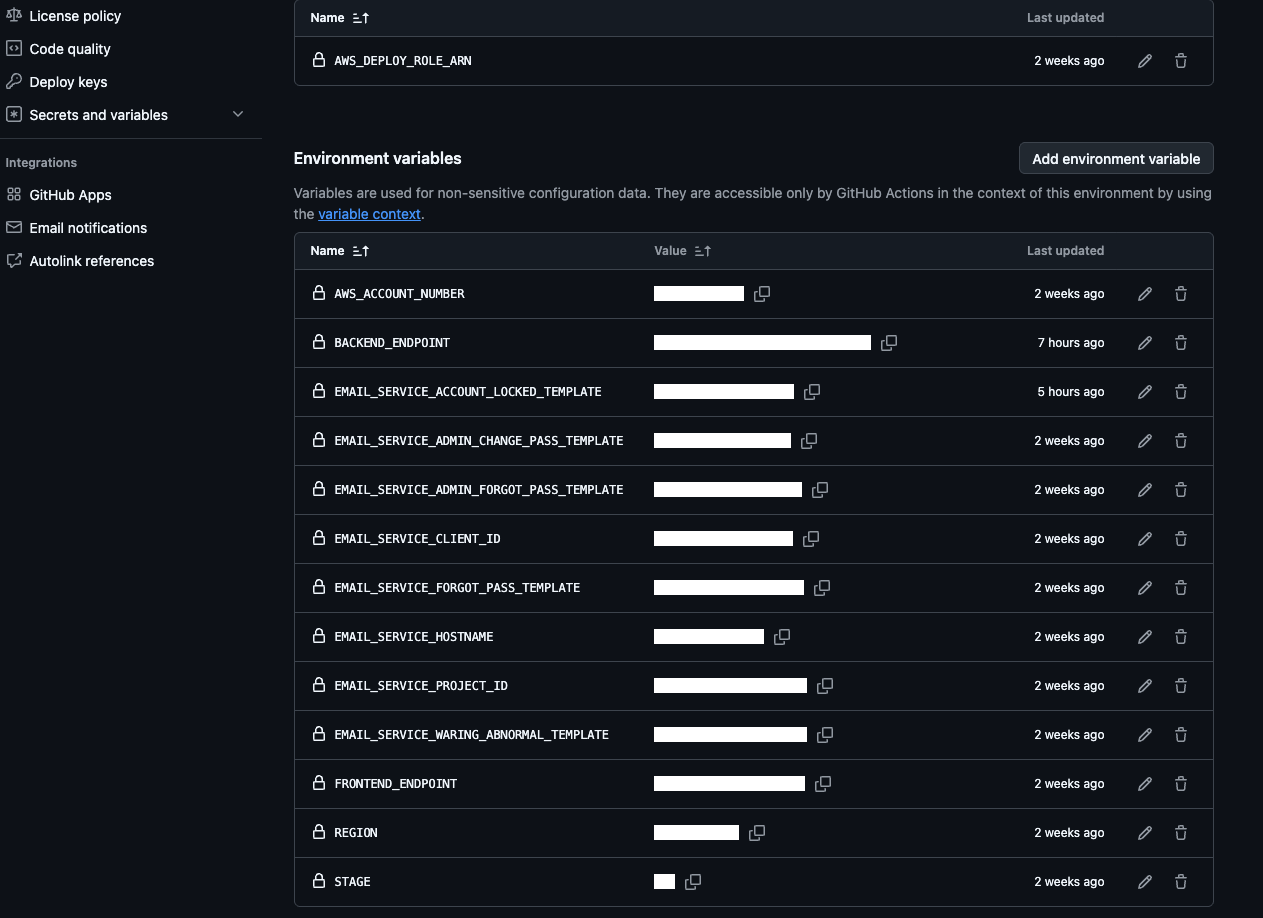
AWS_DEPLOY_ROLE_ARN (secret): the AWS IAM Role this environment assumes via OIDC to deploy its CDK stacks.
ADMIN_EMAIL, ADMIN_PASSWORD, DIVISION_ADMIN_PASSWORD (secrets): credentials used only by the
seedDataoperation to create the initial admin / division-admin accounts.STAGE (variable): the CDK/Serverless stage key for this environment (
dev|stg|production).REGION, AWS_ACCOUNT_NUMBER (variables): override the repository-level defaults for this environment.
EMAIL_SERVICE_HOSTNAME, EMAIL_SERVICE_CLIENT_ID, EMAIL_SERVICE_PROJECT_ID (variables): email service connection config.
EMAIL_SERVICE_FORGOT_PASS_TEMPLATE, EMAIL_SERVICE_ADMIN_FORGOT_PASS_TEMPLATE, EMAIL_SERVICE_ADMIN_CHANGE_PASS_TEMPLATE, EMAIL_SERVICE_ACCOUNT_LOCKED_TEMPLATE, EMAIL_SERVICE_WARING_ABNORMAL_TEMPLATE (variables): template IDs for each email notification type.
FRONTEND_ENDPOINT, BACKEND_ENDPOINT (variables): this environment's public Frontend/Backend URLs, used to build links inside emails/config.
Deployment itself needs no manual pipeline editing anymore: pushing to the
main,staging, orproductionbranch triggersdeploy-backend.yml, which resolves the target GitHub Environment from the branch name and deploys using the matching secrets/variables above.
After deploying, verify the data on AWS (DynamoDB tables, S3 folders) to make sure it was created and seeded completely. If a table or S3 folder is missing, or the seed data wasn't inserted as expected, run the corresponding operation manually via the Manual Ops workflow instead of editing any pipeline file:
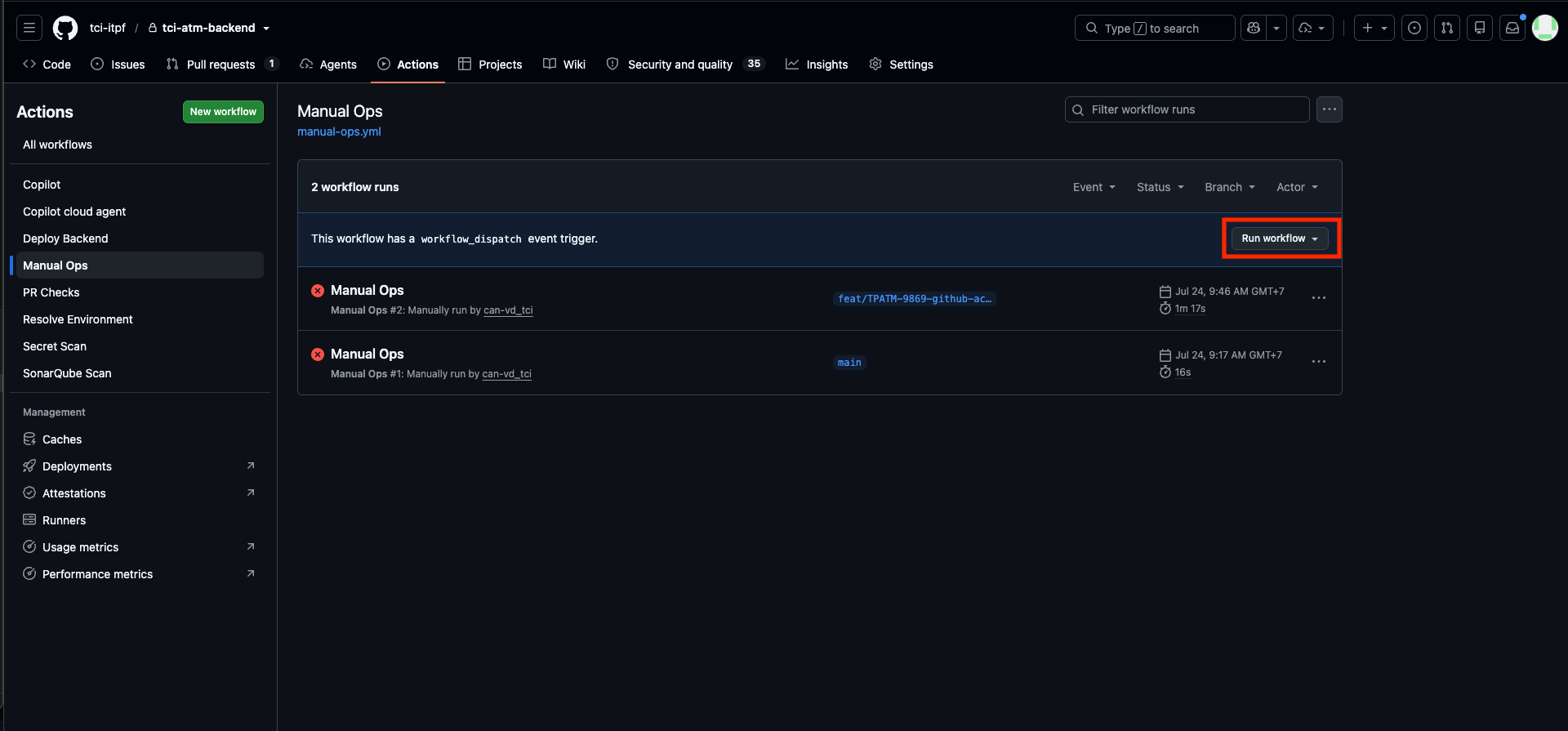
a. Go to the repository's Actions tab → select the Manual Ops workflow → click Run workflow.
b. Pick the operation to run:
createDatabase— deploys the DynamoDB stack.createStorage— deploys the S3 storage stack.seedData— installs dependencies and runsyarn seedto insert the initial data (admin user, division admin, etc).
c. Pick the target environment (development, staging, or production). This selects which STAGE/REGION and which secrets (AWS_DEPLOY_ROLE_ARN, and for seedData also ADMIN_EMAIL, ADMIN_PASSWORD, DIVISION_ADMIN_PASSWORD) the run uses — so a seedData run against staging always uses staging's own credentials, never development's.
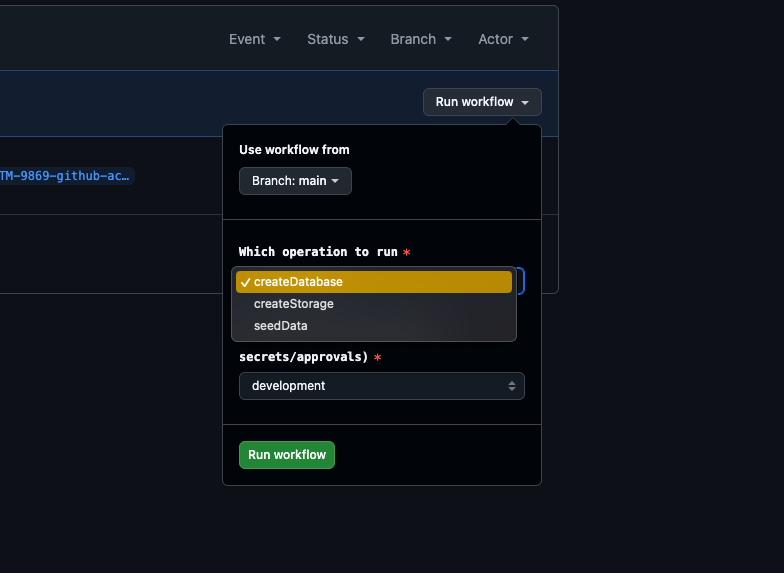
d. Click Run workflow and follow the run from the Actions tab.
For reference, here is what seedData does under the hood: it runs seed.mjs, which calls seedUser(), seedEmailManager(), and seedTpassport() in turn:
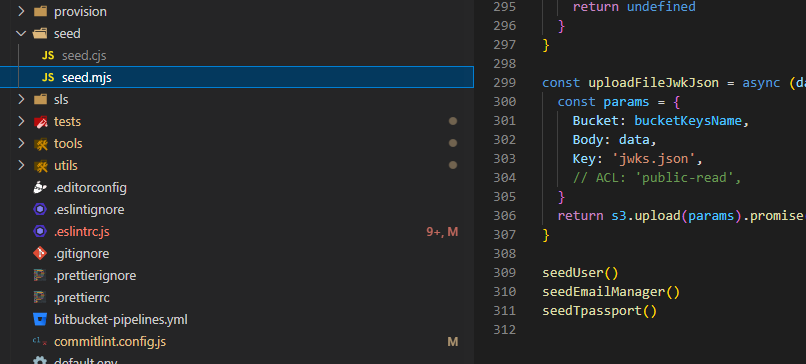
Caution: when seedTpassport() runs, a secret named secret manager is created to log in to ATM.
About keys, both the PrivateKey and PublicKey are stored in AWS Secrets Manager, base64-encoded:
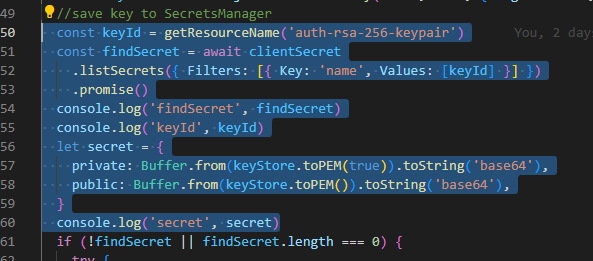
Open AWS Secrets Manager and locate the signing key-pair secret for your stage, named atm-<stage>-auth-rsa-256-keypair. Open that secret to view the PrivateKey and PublicKey used to access the corresponding site.
Note: Screenshots of the Secrets Manager console and secret values are intentionally omitted. Never publish secret names, ARNs, AWS account IDs, or key material in documentation.